Fermilab Adium Jabber Instructions
What is Adium
Adium is an instant messaging/chat program that is used at Fermilab for Macs. The Adium home page (http://www.adiumx.com/) has more information about Adium. Adium 1.3.10 requires MacOSX 10.4 or higher to run.
Downloading Adium for the Mac
If you are at Fermilab and Adium has not already been installed on your computer download Adium from:
http://www.adiumx.com/
Click on "Download Adium X 1.3.10" and install it in your applications folder.
Configuring Adium
- Click on the green bird icon to run Adium.

- If it is the first time you are starting Adium, a "Preference: Accounts" window
will pop up. If not, click on the "Adium" menu and choose "Preferences ..."
to get the "Preference: Accounts" window.
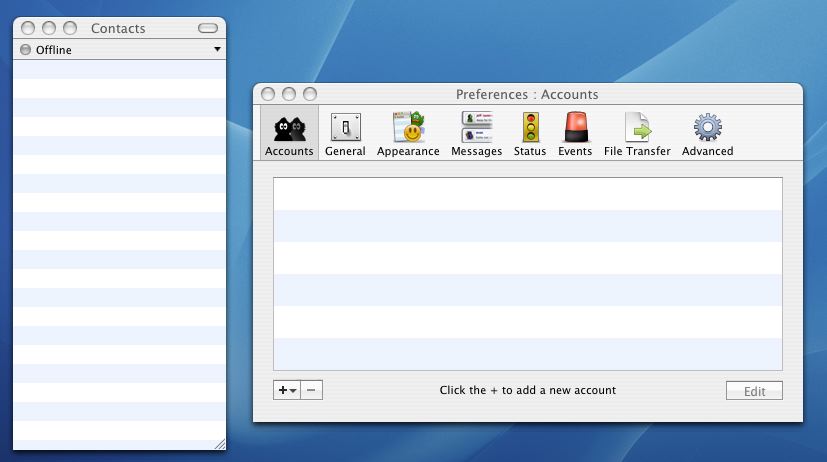
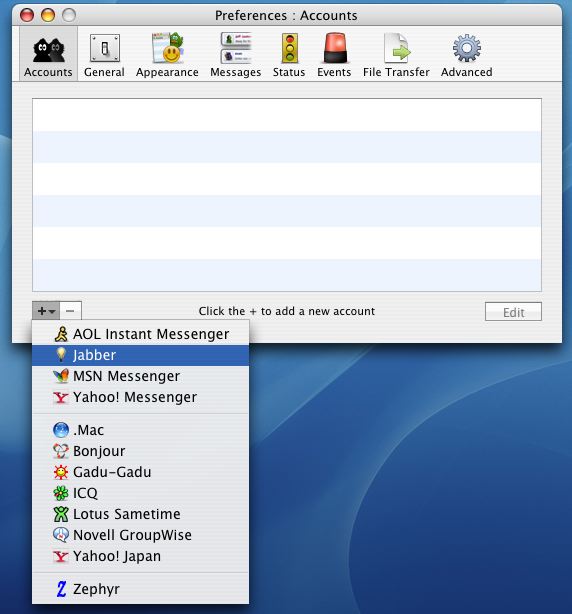
- Click on the "+" in the bottom left corner of the "Preference: Accounts" window
and choose "Jabber" from the menu that pops up.
- In the "Account" tab of the window, type in a "Jabber ID" of "yourusername@jabber.fnal.gov".
It will not work if you type in "yourusername" without the "@jabber.fnal.gov".
Type in your password which is your e-mail gateway (SMTP) password.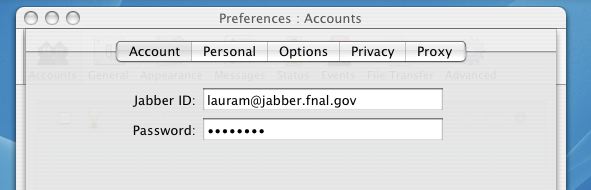
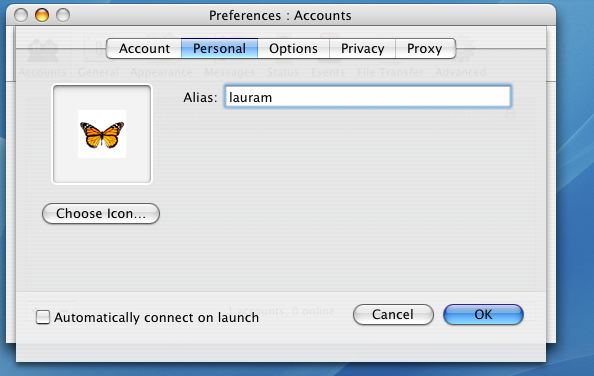
- Click on the "Personal" tab, and type "yourusername" for the "Alias".
Your username is your Fermilab e-mail address without the "@fnal.gov".
- Click on the "Options" tab, and fill in the options as in this screen grab:
For "Connect Server", type "jabber.fnal.gov".
Leave the "Resources" field as "Adium".
For "Port", type "5223".
Leave "Available Priority" and "Away Priority" Blank.
Leave the "Mail: Display new mail notifications" checkbox blank.
In the "Security" section, Leave the "Allow plaintext authentication" checkbox blank.
Check the "Force old-stype SSL" checkbox.
Check the "Require SSL/TLS checkbox.
Leave the "Do Strict Certificate Checks" checkbox blank.
Then click on the OK button at bottom.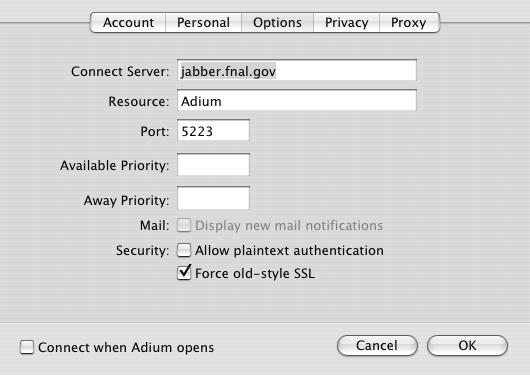
- Changes in the Privacy and Proxy Tabs are not needed.
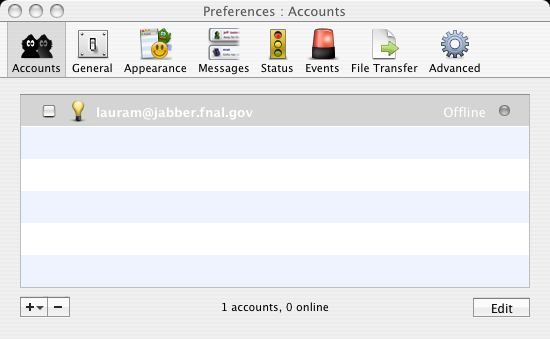
- Your new account will be added to the "Preferences: Accounts" window.
Signing on to the Chat
- Click on the checkbox to the left of the lightbulb in your new account line,
to toggle between online and offline.
Using the Chat
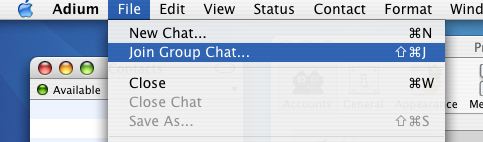
- From the Adium FILE menu, choose "Join Group Chat".
- A "Join Chat" configuration window will pop up.
The "Account" menu should say "yourusername@jabber.fnal.gov".
Fill in "linc1" (or whatever chat room you are scheduled to be in) for the "Chat Room Name".
Fill in a "Server" of: conference.fnal.gov
Fill in a "Handle" of your username or your first name and last initial.
Leave the "Password", "Invite Contacts" and "With Message" blank.
Click on JOIN in the bottom of the "Join CHAT" window.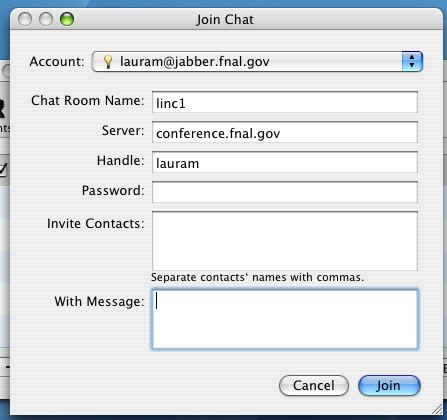
- A new chat room window will pop up.
To chat, type in the text field at the bottom and press RETURN/ENTER to send your text to the chat. You can type a full URL such as / and an active link will appear in the chat window. If you type a smiley face like :-) a smiley face icon will appear in the chat window.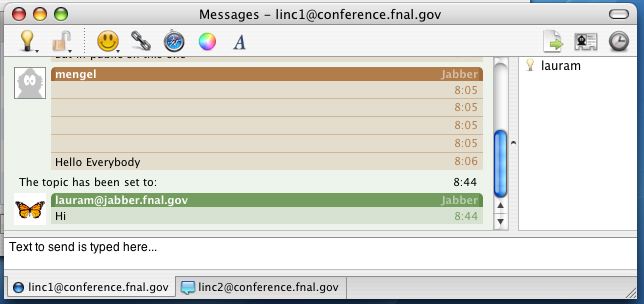
- A list of people in the room is displayed on the left or right side of
your chat window.
Click on anyone in the list to highlight them and then click on
the blue bubble between the lock and the smiley icons at the
top left of the chatroom window to get a whisper (instant messaging window)
with just that one person. This will be added as a tab at the bottom of your
existing chat window. You can switch between the tabs to switch between
the chat windows. Or you can drag one of the tabs onto your desktop
to make a separate second chat window for your whisper / private chat.
- To view chat transcripts, from the Adium 'Window" menu, choose "Chat Transcripts Viewer".
Then pick the chat room or private chat you wish to view from the list on the left.
Pick the chat date you wish to view from the list on the top.
The transcript of the chat will show in the bottom section.
To save the transcript, click on the "Print" icon in the
Chat Transcript Viewer window. Then click on the "Save as PDF"
button in the bottom of the Print window and choose a file name
and location for the transcript and save it.
- To quit: from your "Adium" menu, scroll to the bottom and choose "Quit Adium".