Creating and Changing Links
Prerequisites:
- Have written a Web page
- Have decided what links you want to use
- Have written more than one Web page using PageMill
- Have written at least one Web page using either PageMill or HTML format
Purpose:
- To write HTML documents with links to other pages, images, and sites on the Internet
- To create multiple HTML pages in the same folder that contain links to each other
- To find, create and link to "anchors" (labels) for specific places in HTML documents
|
|
 Tutorial
Animations
Tutorial
Animations
As you work on and/or create the pages for your project, don't forget the Tutorial Animations for Adobe PageMill. These tutorial animations are demonstrations of how to accomplish certain functions, as if the instructor was in the room demonstrating the task. They require Shockwave to run. Directions on how to download Shockwave and a list of the movies available are found on the page.
Linking Your Web Pages
Connecting One Page to Another within Your Project Pages
You might want to have your project read in a certain order, especially on the student pages, or you might want the reader to be able to see your scenario and the corresponding student pages or have the students be able to see your rubric to determine if they are meeting your project goals. In each example you will need to connect (link) these pages together, similar to linking to Internet sites. Unlike Internet link sites, you can have them return through links on the new page to the original Web page or to any project page. Creating interconnected pages may assist your students while they complete the project. They will be able to refer back to a page, obtain information that they need to complete an activity, and then continue with the project. Your Web pages should be like a book where the reader can "flip" to any necessary pages and then return back to continue with the project.
An explanation of different types of links is provided on a page about URLS and relative vs. absolute links for those who feel a better understanding of linking from file to file or site to site is needed.

 PageMill Tutorial
Tutorial
animation available
If you have Web pages that you would like to link together, follow these steps:
1. Open both pages if possible.
- If you are unable to open both Web pages, you can follow the same steps for linking pages to the Internet.
- If using a PC and do not place both pages side-by-side, MINIMIZE and MAXIMIZE one page and then another as needed, then COPY and PASTE.
2. Highlight the part of your Web page you are going to use as the forwarding link.
3. Click on the
Title icon from the page to which you are linking. Drag the Title icon onto the highlighted part on the other page. Release the mouse button.
4. The link should be active.
Notes:
- If you are having problems, check to see if your title icon is "greyed out" instead of showing a page with lines. If it is, save your page and then try to link pages again as described above. Your pages must have been saved first before the linking function described above will work.
- If you are having problems try Linking to a File/Page from the Same Folder and/or Linking to a File/Page in an Enclosed Folder found on the Tutorial Animations for Adobe PageMill.
Linking Your Web Pages to the Internet
There are many excellent sites that are informative, accurate, contain current materials, enable faster contact with an expert, and are relevant to your project. You might want to use these different pages, images, and sites that you have found on the Internet in your project. This saves you the time required to write them yourself and gives your reader opportunities to further his/her research. You may guide your students along or you may use links to start them off in the direction you wish. You need only to create "links" to these Web pages from your own pages using PageMill or raw HTML format. The PageMill tutorial is found on this page. A raw HTML tutorial may be valuable for some participants. Both tutorials are easy to follow.
An explanation of different types of links is provided on a page about URLs and relative vs. absolute links for those who feel a better understanding of linking from file to file or site to site is needed.
PAGEMILL TUTORIAL
There are several ways to create links on your page to resources that are out on the Internet.
Tutorial
animation available
- The easiest way is to drag a link directly from your Netscape window into your PageMill window. Both the text and the URL (address) of the link will be copied.
- The other way is to highlight the text in your PageMill window that you want to be the text of the link, Click in the "Link To:" box (lower left). The box should turn white. Then type in the URL you want it to be linked to in the box. Press RETURN when you are done and the link will be created.
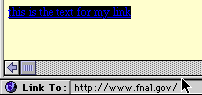 Note that you can copy/paste URLs into the "Link
To:" box instead of typing them in. You can also drag and
drop one of your bookmarks from Netscape's bookmarks window
into PageMill's "Link To:" box. (Don't forget to press
RETURN when you are done pasting or
dragging.
Note that you can copy/paste URLs into the "Link
To:" box instead of typing them in. You can also drag and
drop one of your bookmarks from Netscape's bookmarks window
into PageMill's "Link To:" box. (Don't forget to press
RETURN when you are done pasting or
dragging.
To edit/modify the URL for a link after you have created it:
Tutorial
animation available
- Highlight the exact portion of your text that is underlined for the link. The URL should show up in PageMill's "Link To:" box. Edit the URL as you like, and then press RETURN to make the change take effect.
To remove a link (but not the text of the link) after you have made it:
Tutorial
animation available
- Highlight the exact portion of your text that is underlined for the link. Use the Edit menu's Remove Link item.
To remove a link (including the text of the link):
Tutorial
animation available
- Just delete all the text of the link using your DELETE key, or using Cut from the Edit menu.
To make an e-mail connection:
Tutorial
animation available
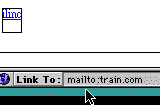 Follow the steps for
making links, except in the "Link To:" box, type in
mailto: then the e-mail address.
Follow the steps for
making links, except in the "Link To:" box, type in
mailto: then the e-mail address.
Example: mailto:ilinc@train.com. Again press RETURN to make the change take effect.
Back to the top
Anchoring Your Web Pages

Are Your Web Pages Sinking or Swimming?
As you write your Web pages, you might want to give the reader choices rather than reading the page from top to bottom, especially if your page is too long to fit completely on the monitor. This is achieved by using "anchors" to allow your reader to reach a specific section on your page instead of scrolling down. You may anchor to any part of your page. You may have the reader be able to go back to the beginning, middle, or anywhere you want.
PageMill Tutorial
Tutorial
animation available
Using PageMill 2.0, decide the place you would like to anchor. Remember you have the option to place an anchor anywhere on your Web page. Click in front of the place you want your anchor to be located. Next, in your menu bar, go to EDIT, pull down to Insert Invisible, and over to Anchor. You should now see the following in front of the designated text:
Next highlight the text you would like to connect with your anchor. Click and drag the
(anchor icon) to the highlighted text. If the highlighted text does not appear on the screen, determine where the text is located. Then, drag the anchor icon to the nearest corner of the screen toward the highlighted text. You should see the screen scrolling up, down, left or right depending on where you drag the anchor icon. If you see no movement, try slowly moving the icon over a little until the screen scrolls. When you have reached the designated area, move to the highlighted text, place the anchor icon directly over the highlighted part and release the mouse button. The designated text should be "active." If you make a mistake, simply go to your menu bar, choose Edit, and pull down to Remove Link.
If you are using PageMill, you might see numbers instead of words to anchor the page section. The software assigns this number to your designated section for you, unless you change the anchor to words using the Inspector.
Note: If you are having problems, try Making an Anchor to Mark a Spot Inside Your Web Page and/or Linking to an Anchor (the spot you marked) Inside Your Web Page found on the Tutorial Animations for Adobe PageMill.
NOTE: If your participants are having difficulty linking the anchor to the highlighted text, make sure they are following the directions carefully. Also, if the highlighted text is not visible when the anchor icon is, remind them to click and drag the anchor to a corner of the screen. The anchor should overlap the corner somewhat for the screen to start scrolling. It might take them a little time until they become proficient.
The purpose of an anchor is move quickly through the Web page. When checking their anchors, see if their anchors achieve this. Could there be more anchors in place to assist the reader, etc? Be sure to add the due date for this assignment to the assignment sheet.
Ripple image from Image Club WebMorsels/Adobe PageMill
Doctor HTML is a Web page analysis tool which retrieves an HTML page and reports on any problems that it finds. The primary focus of this tool is to provide a clear, easy-to-use report of information that is relevant for improving your Web page. This site will check links on a page to make sure they work. Select Verify Hyperlinks and enter the URL that you wish the Doctor to examine.
Task:
 Using
multiple Web pages, link your Web pages together. If you have
more than one student page, this is a good method to have these
pages flow from one to another especially if you want your
students to complete one part of your project at a time. Upload
your pages to your course server. Let your facilitator know
when new pages are available for viewing and comments.
Using
multiple Web pages, link your Web pages together. If you have
more than one student page, this is a good method to have these
pages flow from one to another especially if you want your
students to complete one part of your project at a time. Upload
your pages to your course server. Let your facilitator know
when new pages are available for viewing and comments.
Using your Web page, create links to various
Internet sites, pages and images. Try to include links that
assist your students in completing your project. Upload your
pages to your course server. Let your facilitator know when new
pages are available for viewing and comments.
REMEMBER: These links do not go back to your Web pages. Remind your students how to go back to your pages, either on your pages or in your classroom.
You have the option of completing either of
these for your assignment. Choose the one more relevant to your
project.
- Using the Web page you have written, insert anchors to move around your page. The anchors should enable the reader to move through your page easily and directly to where they need to go. Upload your pages to your course server. Let your facilitator know when new pages are available for viewing and comments.
- If you have more than one Web page completed and you would like to anchor a part on one to a part on the other, the procedure is the same if you can keep both Web pages open at the same time. Follow the above steps of placing the anchor on one page and simply dragging the anchor over to the highlighted text on the second page. Try this and again upload your pages to your course server. Let your facilitator know when new pages are available for viewing and comments.